How to Shoot a Music Video: Playback, Sync and Slow Motion
Plan and film a music video to a playback track: camera settings, lip sync, a clap-and-count-in routine, and the slow-motion trick that keeps sync.


Every music video you have ever loved was shot to a playback track. The singer on screen is almost never singing live: they are miming to the finished song, played loudly on set, while the camera records pictures only. Once you understand that single idea, shooting a music video with a phone or a basic camera stops being mysterious and becomes a planning problem you can solve with a spreadsheet and a speaker.
This guide walks through the full process: preparing the track, setting the camera, running the shoot so everything syncs later, and the slow-motion trick that makes budget videos look expensive.
Start with the song, not the camera
A music video is cut to a fixed piece of audio, so the audio decides everything. Before you pick a location, lock the final master of the song. If the mix changes after you film, the cut points you built around the drums and the vocal entries will move, and you will re-edit by hand.
Export two files from the finished master:
- A full-length WAV at the original sample rate. This goes under the final edit.
- A playback copy as a high-quality MP3 or AAC for your phone or speaker. It only has to be loud and clear on set.
Then build a shot list against the song structure, not against a vague mood. Write the timestamps of each section (intro, verse, pre-chorus, chorus, bridge, final chorus) and decide what each one needs. A chorus usually wants the widest, most energetic coverage, because the viewer sees it two or three times. A verse can sit on closer, calmer shots. If you want a deeper method for matching picture to structure, the approach in Edit a Recap Video Around a Song's Structure applies just as well to a shoot.
Count the coverage you need
For a three-minute song, a rough budget works well:
| Section | Approx. length | Shots to plan |
|---|---|---|
| Intro | 10 to 15 s | 1 establishing shot, 1 detail shot |
| Verses (x2) | 30 s each | 3 to 4 setups each, mixing wide and close |
| Choruses (x3) | 20 to 25 s each | 3 setups, one of them moving |
| Bridge | 15 to 20 s | 1 unusual setup (new location or style) |
| Outro | 10 s | 1 closing shot |
That comes to roughly 15 to 20 setups. With a cut every 2 to 4 seconds, you need far more footage than the song length. A common mistake is to film the whole song three times from three angles and hope. It is better to film short sections many times with different framing.
Set the camera before the first take
Pick one frame rate and one resolution for the entire shoot and never change them. Mixed frame rates are the number one cause of a stuttering timeline.
- Frame rate: 24 fps gives the classic film look. 25 fps is standard in many PAL regions, and 30 fps looks smoother and more like TV or social video. If you plan to use slow motion, shoot the slow shots at a multiple of your base rate (48 or 60 for a 24 timeline).
- Shutter speed: a long-standing guideline is the 180 degree rule, where shutter speed is about double the frame rate. At 24 fps that means 1/48, usually set as 1/50 on a phone or consumer camera. StudioBinder's explanation covers the formula: shutter speed equals 1 divided by (frame rate times shutter angle divided by 360). Treat it as a starting point, not law. Fast action, such as a dancer spinning, often looks better with a faster shutter, a point made in Pro Video Coalition's piece The 180 shutter angle rule is broken.
- Flicker: indoor lights run on the mains frequency, and a mismatched shutter can produce visible banding. One of the sources above notes that 25 fps with 1/50 matches 50 Hz lighting, while 24 fps with 1/48 can flicker under it. Do a ten second test shot in the actual room and check it on a larger screen.
- Focus and exposure: lock them. On a phone, press and hold on the subject until the screen shows an AE/AF lock. Auto exposure that drifts mid-take ruins an otherwise perfect performance.
You do not need to record usable audio on the camera, but record it anyway. The scratch audio from the camera microphone is what lets you sync later, which is the next section.
Run the shoot so everything syncs
Play the track from a consistent starting point
Always start playback from a known place, with a short count-in or a clap, and start the camera first. If every take of a section begins from the same marker in the song, you can line takes up by waveform in the editor in seconds. If you start the track at random points, you will spend hours matching lips by eye.
A simple routine for each take:
- Call the section and the take number out loud ("chorus one, take three"). It ends up on the scratch audio and saves you from guessing later.
- Start recording.
- Clap once, clearly, in view of the camera.
- Start playback from the section's start marker, with a one-bar count-in.
- Perform. Cut after the section ends, not the moment the performer stops.
Position the speaker as close to the performer as practical and loud enough to hear over footsteps, but away from the camera microphone. If you want to avoid the playback bleeding into the scratch track, use a single earbud in the performer's ear. Many professional shoots use in-ear monitors for exactly this reason.
Make the performance read on camera
Lip sync looks wrong when the performer sings quietly. Ask them to really sing, at full volume, even though the audio will be replaced. Breath, throat tension and jaw movement are all visible, and the viewer's brain reads them as real. Play the song a few times at rehearsal so lyrics and breaths land in the right places.
Shoot instrumental performance with the same logic. A guitarist should play the real part, because fake finger movement is easy to spot. A drummer should hit pads or a practice kit to the actual track, with the sound recorded separately or not at all.
The slow-motion trick: sing fast, play slow
Slow motion is the cheapest way to make a video feel cinematic, and it works with lip sync if you speed the playback track up on set. The physics is straightforward: if you shoot at a higher frame rate and play the footage back at your timeline rate, motion slows down. If the performer sings along to a faster version of the song during the shoot, their mouth movements slow back down to the original pace in the edit.
The ratio comes straight from the frame rates. Shooting at 60 fps and playing back on a 24 fps timeline gives 2.5 times slow motion, so the on-set track has to be 2.5 times faster, a number DVinfo forum threads on slow-motion sync work through. A cleaner example is 48 fps on a 24 fps timeline: exactly half speed, so you play the song at double speed.
| Shoot rate | Timeline rate | Slowdown | On-set track speed |
|---|---|---|---|
| 48 fps | 24 fps | 50% | 2x |
| 60 fps | 24 fps | 40% | 2.5x |
| 60 fps | 30 fps | 50% | 2x |
| 120 fps | 24 fps | 20% | 5x |
Practical limits you should know before trying it:
- Use a pitch-preserving speed change when you make the fast track, so the song stays in the same key and the performer can still sing it.
- Stay modest. Singing a fast verse at 5x is nearly impossible. Doubling is comfortable for slower songs, and slow ballads handle higher multiples than rap verses.
- Choose slow sections. Choruses with long held notes work better than quick patter. Slow motion also suits movement shots where nobody is singing, such as walking, hair, smoke or dancing, which need no special audio at all.
- Check your camera. Not every phone or camera offers 48 fps. High frame rate modes often drop resolution or record without audio, as the forum threads note, so test the exact mode first.
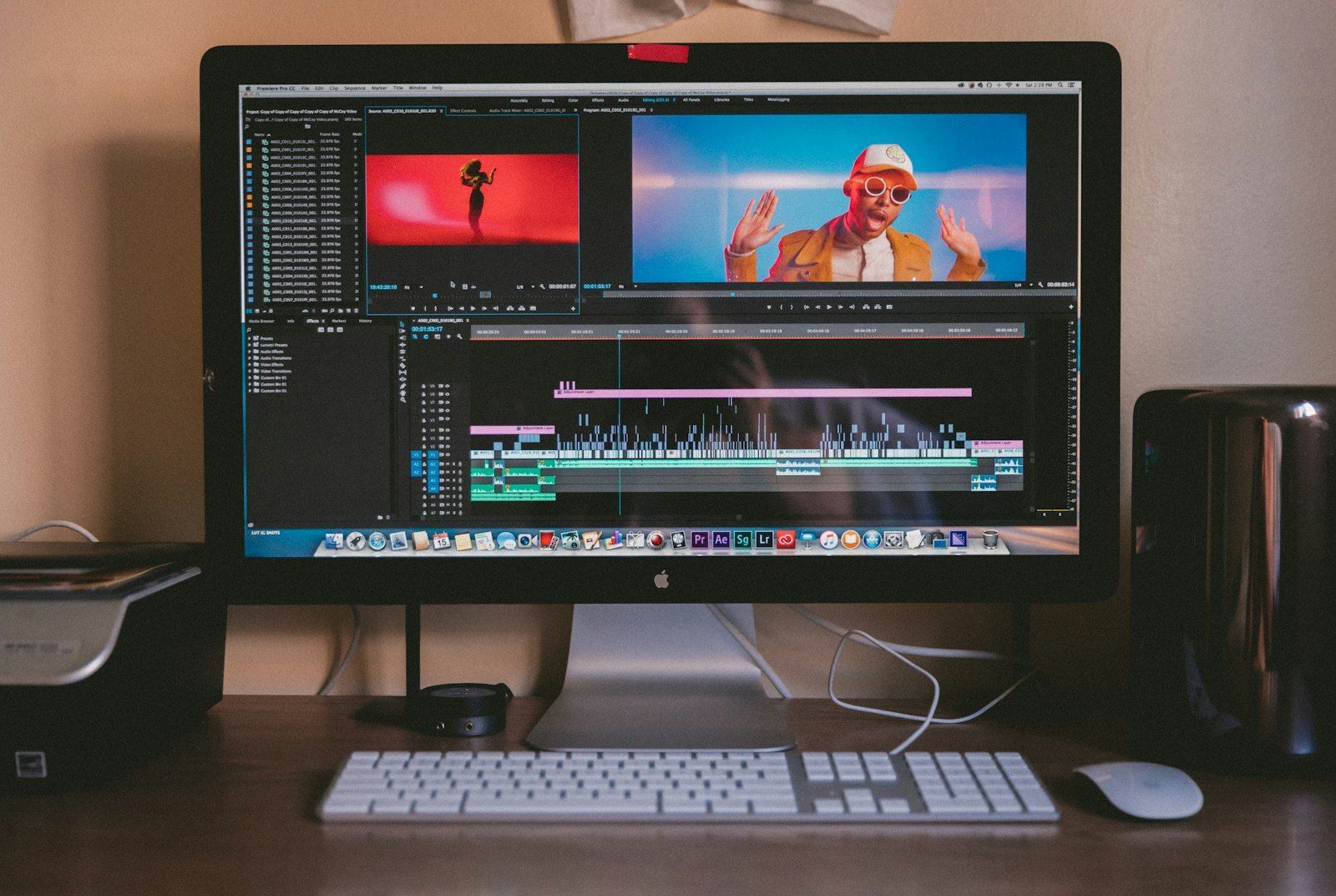
In the edit, slow the clips to the percentage in the table (or conform them to the timeline rate), drop your full-length WAV under the video and nudge the clip until the lips match. That is the same sync step you would do with any footage.
Plan the edit while you shoot
The edit should not be a surprise. As you shoot, think about where cuts will fall. Cuts feel natural on downbeats and at phrase boundaries, and our guide to cutting video on the beat shows how to place them against the waveform.
Some habits that make the edit faster:
- Shoot every section from at least two angles, so you can cut between them without a jump.
- Capture 5 to 10 seconds of "B-roll" (hands, instruments, feet, the room) at each location. It fixes bad transitions later.
- Keep one camera position per setup, and move the camera between setups, not during takes, unless the move is the point of the shot.
- Name files as you go. Renaming a hundred clips named IMG_0001 is painful.
Check the music rights before you publish
If you wrote and recorded the song yourself, you are in good shape. If the video uses a cover or someone else's track, you need permission, and platform rules differ. Read Music Licensing for Video Creators: What You Can Safely Use before you put the video online, because a copyright claim after upload can mute or monetize your work away.
Your first shoot, in one afternoon
Pick a song you know well, ideally under three minutes and not too fast. Then run this exercise:
- Write the section timestamps on a sheet of paper.
- Choose one location with good light and plan three setups: wide, medium and close.
- Set the camera to 24 fps and 1/50 shutter, lock focus and exposure.
- Film the chorus three times per setup using the clap and count-in routine above.
- Film one slow shot at 48 fps with the song at double speed.
- Edit the 30 second chorus alone and see how it feels.
If one chorus looks good, the rest of the song is just repetition of what you already learned.
Build your next playlist with Mixider
Mix YouTube, YouTube Music, SoundCloud, Bandcamp, Audius and more in one shared playlist, and let your friends add their picks.
Try Mixider for free